
Resetting an Apple watch is simple if you can differentiate between resetting and unpairing. Resetting brings your Apple Watch to the default factory settings, while unpairing lets you disconnect from the list of previously paired devices. While resetting is easy as eating a pie, unpairing is a bit annoying procedure.
Don’t Reset Directly from your watch.
To sell an Apple Watch, you must ensure that your personal information has been erased and your Apple ID has been deactivated. The standard method is Settings > General > Reset > Erase All Content and Information. However, this method removes only your data and not your Apple ID and password. As a result, the Apple Watch is iCloud locked (also known as activation locked), which means no one can access it except you. This may be a major pain for the next owner of the watch and those trying to sell it.
It doesn’t make sense because resetting an iPhone or iPad using the above method removes the iCloud account. As a result, many individuals (who haven’t read this post) believe they can reset their Apple Watch the same way they reset their iPhone before selling or giving it away.
This mismatch has posed a significant difficulty for consumers who sell their Apple Watch under the impression that it has been entirely factory reset, only to get an irritated response from an iCloud locked Apple Watch buyer. Even though your Apple ID and password are “locked,” the chance of someone gaining access to them exists. So here’s what you should do.
So, how can you reset your Apple Watch?
To unpair the watch, you’ll need the Watch app on your iPhone. When you use the app to unpair your Apple Watch, it will begin resetting itself to factory settings and removing all of your data. It will also delete your Apple ID and iCloud account so that the next person can use it.
This is the key distinction between unpairing via the app and resetting the watch directly. Another user can use your Apple Watch once it has been unpaired.
Why is the Watch app method better?
This is the recommended method from Apple and is more secure than other resetting and unpairing methods. It completely erases all your data and securely disconnects from all paired devices.
How to unpair Apple Watch from Your iPhone:
1. On your iPhone, open the Watch app.
2. Select the Apple Watch you wish to unpair by clicking on it. (It should be connected to your iCloud account.)
3. Select the icon that looks like a small orange ‘i’
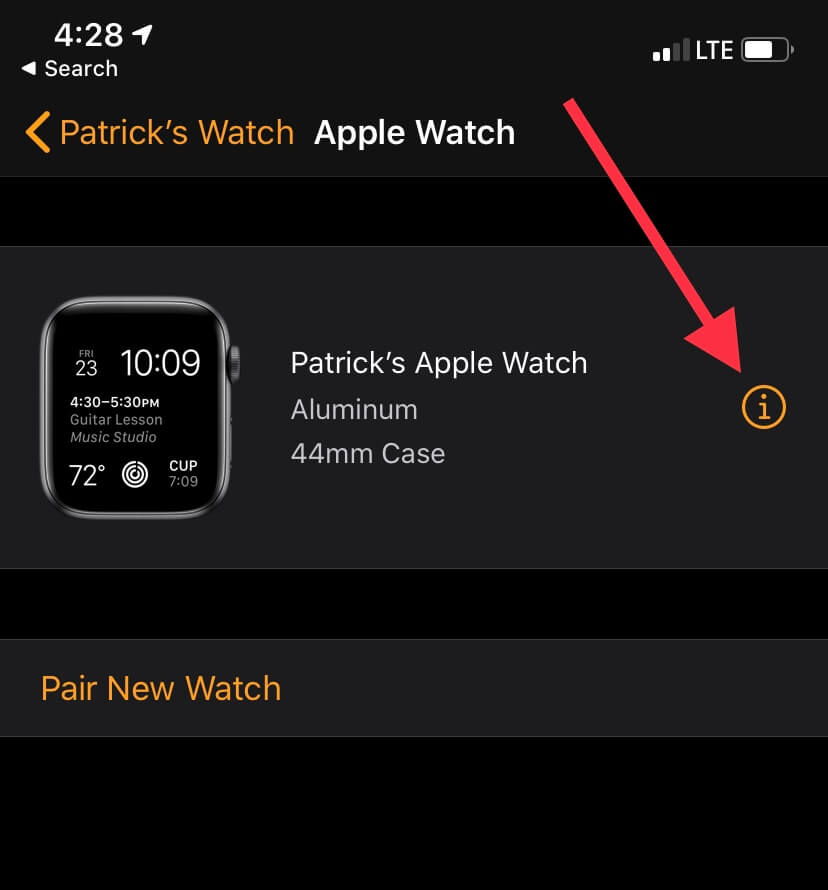
4. Select Unpair Apple Watch from the bottom
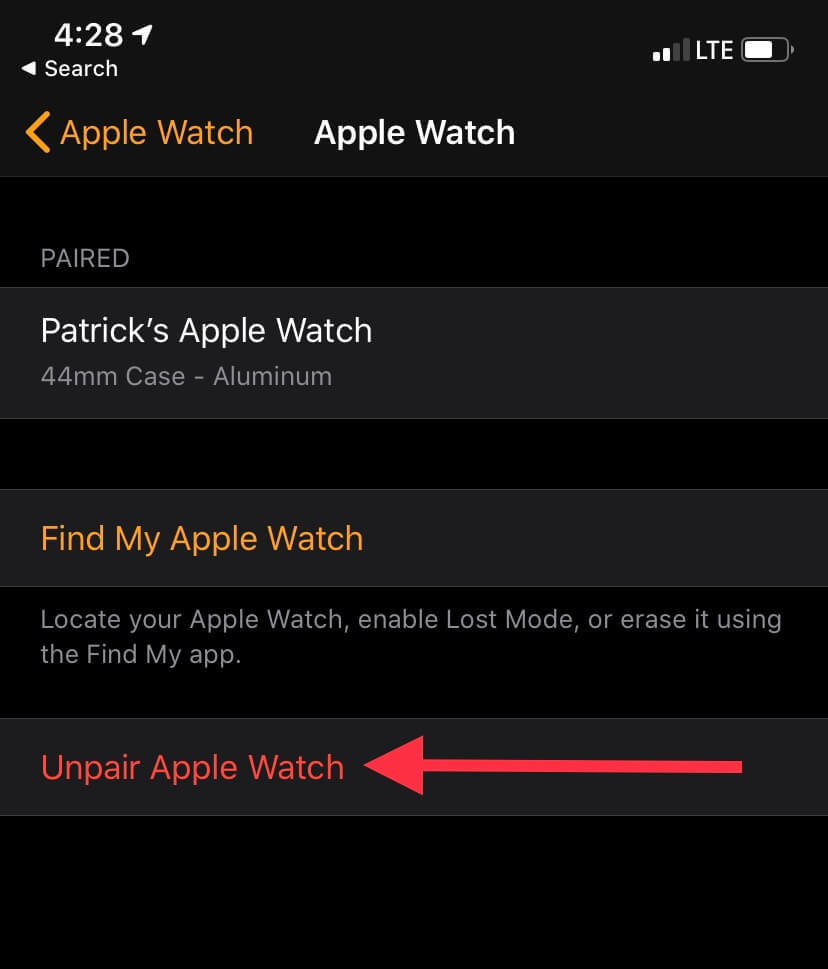
5. To begin unpairing, enter your Apple ID and password.
6. Keep your iPhone close to your Apple Watch throughout the unpairing process.
7. When your Apple Watch gets to the home screen, it’s ready for use by someone else.
What if you can’t unpair through your iPhone?
The only time you won’t be able to unpair your Apple Watch using the Watch app on your iPhone is if:
- Your Apple Watch is broken and unable to sync with your phone.
- The iPhone paired with your watch is lost or non-operational
Don’t worry if you are facing these problems. You can unpair your watch by going online and using a web browser. Simply follow the steps below!
Using a Web Browser to Unpair an Apple Watch
If your iPhone isn’t working, you may completely unpair your device using a web browser. Keep in mind that the instructions for web and mobile browsers change substantially.
Using a Web Browser on a Desktop:
1. Go to Settings > General > Reset on your Apple Watch, then hit Erase All Content and Settings. During the reset, make sure your watch is connected to its charger because it might take a while, and you don’t want the battery to die.
2. Turn off your Apple Watch before moving on to the next step.
3. Log in to icloud.com using the Apple ID associated with your Apple Watch.
4. Go to the Find My page on icloud.com.
5. At the top of the next screen, select All Devices.
6. From your list of devices, locate and choose your Apple Watch.
7. From the drop-down option at the top of the screen, choose All Devices once more.
8. Select the circular ‘x’ icon from the drop-down menu.
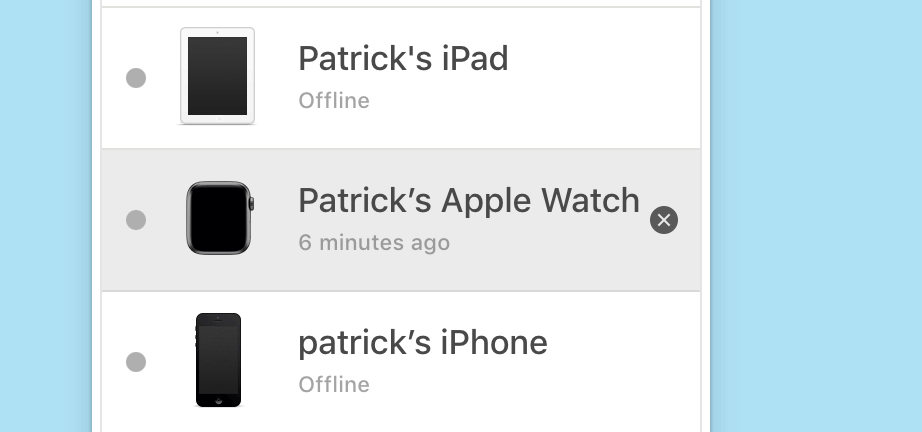
9. You’ll be asked if you wish to delete your Apple Watch from your iCloud account in a message. Confirm the removal.
That’s all there is to it! Your Apple Watch has now been reset and unpaired.
Unpairing through a Mobile Browser:
1. Repeat the first four steps from the beginning.
2. Locate and choose your Apple Watch from the My Devices list.
3. At the bottom of the page, click Remove From Account.
4. That’s all there is to it! You’ve successfully deleted your Apple Watch’s iCloud account.
How to Reset an Apple Watch That Has Been Damaged
You won’t be able to remove your data from your Apple Watch if it breaks. You may, however, delete your iCloud account. This is crucial because if you sell the watch for parts, a refurbisher can delete the watch data to be used by a new owner after it’s been fixed. As a result, deactivating your iCloud account from a damaged Apple Watch will enhance its worth significantly. (This is why you must deactivate it after you’ve decided to get rid of it.)
Follow the steps in the section above, from Step 3, to erase your iCloud account from a damaged Apple Watch. Follow the desktop method and mobile method, depending on the device you are on.
Keep in mind that your Apple Watch is still password-protected. As a result, you don’t have to be concerned about someone gaining access to your data after your Apple Watch has been fixed. Once the problem has been resolved, a technician can quickly conduct a factory reset on the watch without gaining access to any data. You may expect your info to be protected because they’re typically trustworthy.
This is author biographical info, that can be used to tell more about you, your iterests, background and experience. You can change it on Admin > Users > Your Profile > Biographical Info page."
About us and this blog
We are a digital marketing company with a focus on helping our customers achieve great results across several key areas.
Request a free quote
We offer professional phone repair service at our multiple outlets or on site. Just give us a call at 9777 7509 for a FREE QUOTE!
Subscribe to our newsletter!





Recent Comments