
Every year, Apple introduces new iPhone models. While getting a new phone is usually exciting, moving all of your crucial data may be time-consuming. Fortunately, Apple ID and iCloud accounts are set up to make moving iPhones as simple as possible. Only a few steps are required.
Here’s how to transfer from one iPhone to another without a hitch.
Prior to Changing iPhones
You should do a few things before switching to ensure that all of your data are adequately transferred.
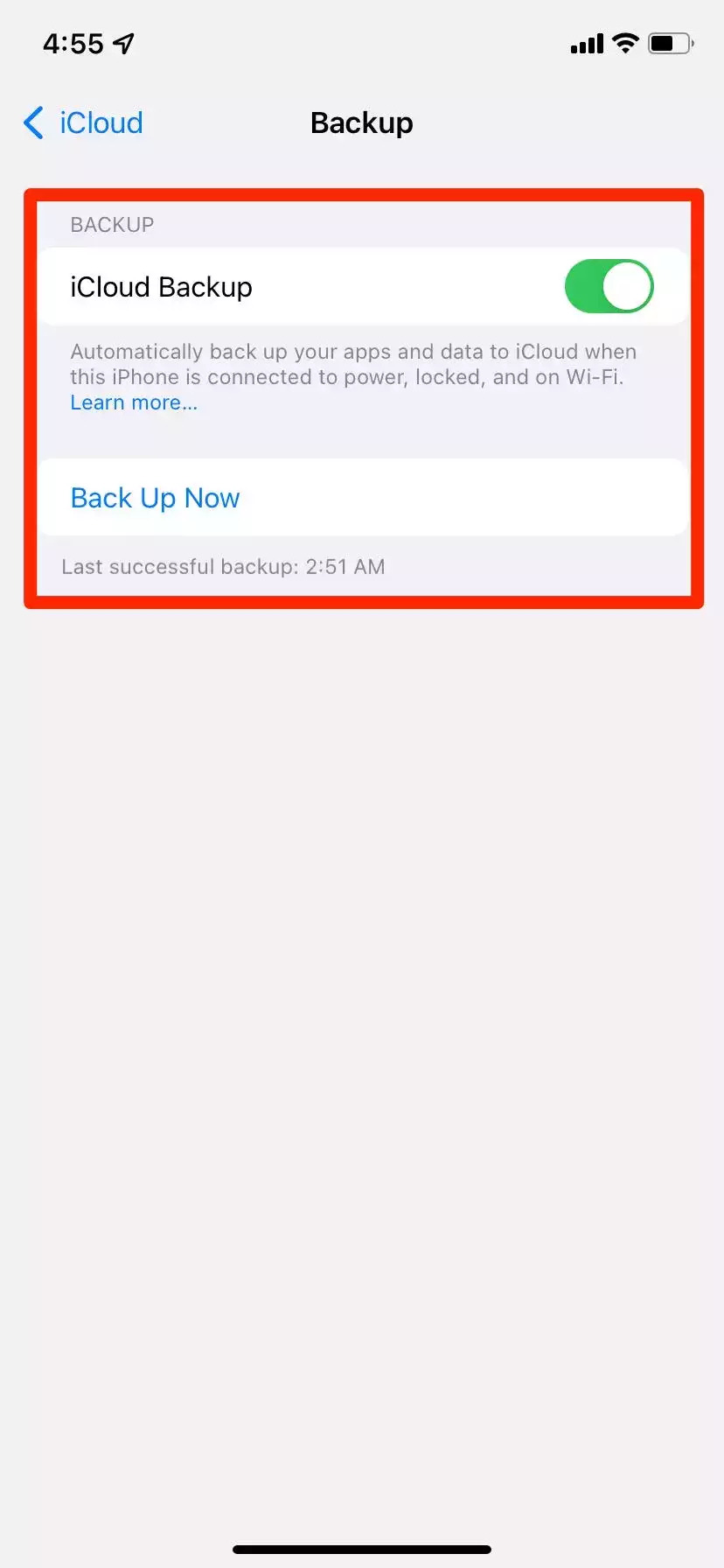
Make a copy of your old iPhone’s data in case something goes wrong. You can do this by going to the Settings app, clicking on your name at the top, and then clicking on iCloud. This will let you back up your iPhone’s data. Read our post on how to save your iPhone’s data to iCloud to make sure everything is backed up.
Unless you’re changing phone numbers, you’ll need to remove the SIM card from your old iPhone and insert it into the new iPhone. The SIM card is a tiny data chip that stores your phone number and information about your mobile carrier account.
Note: While most mobile carriers allow you to move SIM cards between phones without difficulties, check with your carrier to see if further procedures are required.
It’s not difficult to switch SIM cards, but you’ll need a specific gadget to do it. To learn more about removing and replacing the SIM card on an iPhone, check out our guide on how to do it. You may still use your old iPhone, but you won’t be able to make or receive phone calls or send text messages if you don’t have a SIM card. If you have an Apple Watch, you should disconnect it from your previous iPhone. You can accomplish this via the Watch app – for a complete tutorial, see our reset Apple Watch post.
It’s time to transfer iPhones once you’re all set.
How do I change iPhones?
You may move your data onto the new iPhone in one of two ways: Utilising the Quick Start function or using iCloud.
It’s possible to configure the new iPhone without transferring any data, in which case you may then email yourself any photographs, videos, or files you need and re-save them. Although this provides you with more control over the data you send, it takes a lot longer.
Using the Quick Start function
It is possible to use the QuickStart feature while setting up a new phone if your old one was running iOS 12.4 or later (you can verify this in the Settings app). You may scan an image and send the actual data using the QuickStart function.
1. Connect your new iPhone to a charger and set your old iPhone beside it to turn it on.
2. On your old iPhone, a pop-up should appear asking if you want to set up the new iPhone using your Apple ID. Continue by tapping the Continue button.

3. Wait for an animation to show on the screen of your new iPhone, then place your old iPhone on top of the new one as instructed.
4. Log into your Apple ID account after entering the passcode and setting up your Face ID or Touch ID on your new iPhone.
5. You’ll be asked to restore data from an iCloud backup or transfer data straight from your previous iPhone. Choose one of the two options.
Until your new iPhone is ready to use, keep both devices on and close to each other.
Transferring data through an iCloud backup
This technique uses the backup we created before.
1. Connect your new iPhone to a charger, turn it on, and follow the on-screen instructions. Make sure you’re connected to a wireless network.
2. Tap Restore from iCloud backup and enter your Apple ID account after reaching the Apps & Data page.
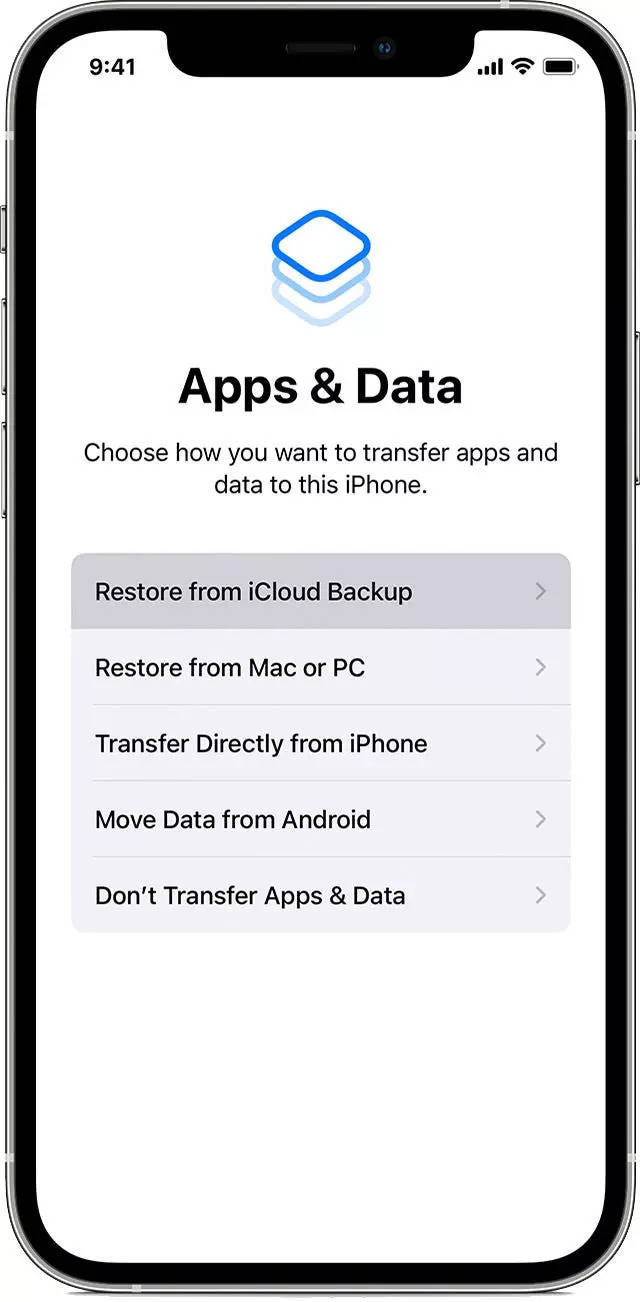
3. Select the backup from which you wish to restore your data; it’ll likely be the most recent.
Until the backup transfer is complete, keep your iPhone connected to Wi-Fi.
If you have a backup saved to iTunes or the Finder app, you may tap the Restore from Mac or PC option. This is the same procedure as before, with the exception that you’ll need to connect your new iPhone to your computer.
This is author biographical info, that can be used to tell more about you, your iterests, background and experience. You can change it on Admin > Users > Your Profile > Biographical Info page."
About us and this blog
We are a digital marketing company with a focus on helping our customers achieve great results across several key areas.
Request a free quote
We offer professional phone repair service at our multiple outlets or on site. Just give us a call at 9777 7509 for a FREE QUOTE!
Subscribe to our newsletter!




Recent Comments